Translate

Thursday, November 21, 2019

Find photos by text in the photo - and other new features in 2019

Google Photos just keeps getting better at searching your photos. One of the recent new features is the ability to search for text that is found in the picture. 
Some photos found in searching for "welcome."
The pictures you see here are just a few of my photos that were found by searching for "welcome." 
Go ahead, give it a try:
  • Just open Google Photos on your Android, iPhone, or photos.google.com on the Web
  • Click on the search bar at the top and type  welcome  or any word you think will be found in your photos
  • Press Enter on computer, or the checkmark or search button on mobile.
  • Did it find any?
Google Photos 2019 - what else is new? Since my book, Mrs. Geek's Guide to Google Photos: second edition, was published in summer of 2018, I've been keeping a list of everything that has been added or changed. That will be the topic of our next What Does This Button Do? show. 

  • What: Episode 179 of our YouTube show
    Google Photos 2019 - what's new?
  • When: Live this Sunday, November 24, at 2pm Eastern
  • How: just click below. If you watch while we're live, you'll be able to ask questions. If you watch later, you'll see the recording.


Chris Guld is President and Teacher-in-Chief at GeeksOnTour.com. She has been in computer training and support since 1983. She is now a Product Expert for the Google Photos Forum, owner of the LearnGooglePhotos.com blog, and author of Mrs. Geek's Guide to Google Photos. 
She loves to teach! If you want to learn, you’ve come to the right place.

Saturday, November 2, 2019

Resurface Old Memories with New Feature of Google Photos

Have you noticed a new set of icons at the top of your Google Photos app? That's called "Memories" and it's Google's way of saying - "Don't forget about your older photos, there's some good stuff here."
I take a lot of photos, all the time. My Google Photos account stores over 100,000 of them, so there is a lot of content for Google to re-surface in this new feature.
I have a bubble for 1 year ago, 2 years ago, and all the way thru to 15 years ago. You may not have a bubble for each year because it is looking for pictures from "this week" in each year. When you tap on a bubble, you get a slide show. There may be one photo, twenty photos, or any number in between, depending on how many photos Google found for this week in that year.

They're temporary

These are temporary albums, they aren't stored anywhere, they are just there for your browsing pleasure. Next week, they'll be different.
A cool feature is the ability to share. Let's say you click on 8 years ago and you see some wonderful old pictures of Jerry. There is a share button at the top of the screen so you can share directly from this memory rather than scrolling thru your library to find them.


Hide your unwanted memories

Maybe you'd rather not see photos of your ex-husband, or your ex-boss? There's a setting for that! In the main Google Photos screen, tap the 3-line menu, then Settings. You will see an option for Memories. Tap there and you'll have an option to turn memories completely off, you also can tap on People & pets and see all the faces in your library - tap on any that you want to hide.
You should also be able to hide selected dates on the same settings screen. On my devices, I see the Date option on my iPhone but not my Android.

For more info on this Memories feature, see the official Google Blog: Watch and manage your memories

Chris Guld is President and Teacher-in-Chief at GeeksOnTour.com. She has been in computer training and support since 1983. She is now a Top Contributor for the Google Photos Forum, owner of the LearnGooglePhotos.com blog, and author of Mrs. Geek's Guide to Google Photos. 
She loves to teach! If you want to learn, you’ve come to the right place.

Thursday, October 3, 2019

Navigate to a Photo

As an RV traveler, this has to be my favorite feature of Google Photos. I take a picture every time we park at a new camp spot. Now, whenever we are away from that spot, I can easily navigate back there using this feature of Google Photos and Google Maps. You don't have to be an RVer to use this feature though. What if a friend takes you to a special, nearly hidden, parking spot? You'll never remember how to get there. Just take a photo and your phone will be able to use its GPS capabilities and get you back to the exact spot.

This works on iPhones or Android, but you must be using Google Photos and Google Maps.
  • Just view the photo and swipe up to reveal the map - see animation here.
  • Tap the map and you'll go to Google Maps
  • In Google Maps, tap Directions, Choose starting point as Your Location, then >Start
Don't see a map? 
That means your camera is not capturing location information when you take a photo. You need to turn the setting on:
Android: Open the camera, find settings, look for "Location Tags" or "GeoTags" and turn it on.
iPhone: Settings, Privacy, Location services = On, Camera = While using the App

Chris Guld is President and Teacher-in-Chief at GeeksOnTour.com. She has been in computer training and support since 1983. She is now a Top Contributor for the Google Photos Forum, owner of the LearnGooglePhotos.com blog, and author of Mrs. Geek's Guide to Google Photos. 
She loves to teach! If you want to learn, you’ve come to the right place.

Monday, July 22, 2019

Check your Google Photos Settings Now


Most people install Google Photos on their phone, accept the defaults, and never look at settings again. We think it's important to understand your settings, so how about taking a look right now?

Check your settings
Open the Google Photos app on your iPhone or Android device and tap the 3-line menu in the upper left. Notice the name and email address that shows up at the top of this screen, above the menu. That is the account being displayed. When you click on Photos, you are seeing the photos in that account.


Next choose Settings from that menu and then tap on Back up & Sync and check
  1. Backup account - should be the email address for your main Google account, usually it is the same account as the photos being displayed but it doesn't have to be. There are sometimes situations where you want to be viewing one account and backing up to another, but not normally
  2. Upload Size - should be High Quality if you want free unlimited storage
  3. Cellular Data Back up - should be OFF unless you have an unlimited data plan or you don't take very many photos, then you could turn it on at least for photos 
View your photo library on a computer
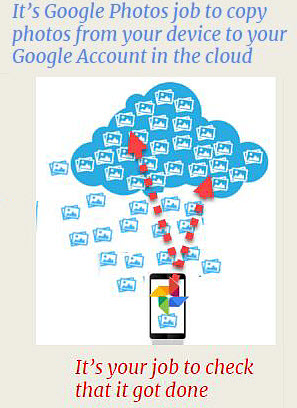
In addition to checking your settings, we want you to check that your photos have successfully been uploaded from your phone to the cloud - in your Google account. To do that, open Google Photos thru a browser on a computer at Photos.Google.com. Make sure you are signed in to the same account as in #1 above - you'll see the account in the upper right of your screen. You should be seeing all the same photos here as you see with the Google Photos app on your phone. The most recent are at the top. If they don't match your phone, either the backup has not completed or you're looking at a different account.
________________________________________________________________________

More to learn for premium members only

Not a member? Join now. (It's less than $5/mo paid annually)
  • Got Questions? Ask on the Q&A page of our website. Answering questions is a benefit of membership.
  • Show Notes: Another member benefit! Episode 170.The show notes contain links to specific places of the video so you can watch just the parts that interest you. You can even print out the notes.
  • Backstage Pass: membership gets you an invitation to meet up online immediately after our live shows.
Learn more with these short tutorial videos:

Chris Guld is President and Teacher-in-Chief at GeeksOnTour.com. She has been in computer training and support since 1983. She is now a Top Contributor for the Google Photos Forum, owner of the LearnGooglePhotos.com blog, and author of Mrs. Geek's Guide to Google Photos. 
She loves to teach! If you want to learn, you’ve come to the right place.
Wednesday, June 19, 2019

What's happening with Google drive and Google Photos?

Google has announced that they're changing how Google Photos and Google Drive are working together, When Google makes this change - planned for July 10 - there will no longer be a direct relationship - see the diagram at right. One thing to understand is that you may have never had the relationship to begin with because it depended on your turning on a setting.

The settings that are being removed

If you never turned on these settings, then nothing is changing for you. You can check them now:
  1. In Google Photos, 3-line menu, Settings, Google Drive: Sync photos & videos from Google Drive
    is yours on? or off?
  2. In Google Drive, it's the gear icon in the upper right then Settings, Create a Google Photos folder.
    Is yours on? or off?
If you do have them on, then here's what will happen when Google removes them:
  1. The Google Photos folder in my drive will stop getting new photos from Google Photos. What's already in that folder will remain.
  2. New photos added to Google Drive will no longer show up in Google Photos. Any photos already in Google Photos will remain.

The implications of this change

If you depended on the Google Photos folder in Drive to sync your phone's photos down to your computer, you need to find an alternate way to do this. I recommend another cloud storage service such as Microsoft OneDrive, Dropbox, or Amazon Photos.
Before the breakup, it was possible to take pictures on a phone and have them synced to a computer.


If you depended on photos being in Drive so that 3d party programs could access them, they won't be there automatically. You will need to download photos from Google Photos to your computer, then you can upload them to Drive if needed. If you manually upload them to drive, they will take up your Google Drive storage allotment. If you lete Backup and Sync to the uploading, you can select the High Quality setting to access the unlimited storage feature.
If you regularly save images to Google Drive, you will be able to copy any of them to Google Photos with a new manual import tool. 

One more side effect from the breakup is that YouTube will lose its "Import your videos from Google Photos" feature, this is the only thing I will personally miss.

Other Articles

This is a hot topic right now and a lot of articles have been written about it. Many of them have wrong or misleading information in them and serve to prove the point that the relationship between Google Photos and Google Drive has been very confusing. One article besides the official announcement that I can recommend for further detail is PeggyK's article. She is a highly respected Product Expert for several Google products Her article includes what will happen on July 10 and how it will affect your Google Storage quota.

Chris Guld is President and Teacher-in-Chief at GeeksOnTour.com. She has been in computer training and support since 1983. She is now a Product Expert for the Google Photos Forum, owner of the LearnGooglePhotos.com blog, and author of Mrs. Geek's Guide to Google Photos. 
She loves to teach! If you want to learn, you’ve come to the right place.

Friday, May 17, 2019

Adding and Removing Photos from Albums

Album View in Google Photos
I take lots of photos. If I'm in a beautiful area I may take 1-2,000 in a month. I love them all and I don't want to delete any, (that's work) but I do want to be able to find and show just my best (that's fun.)
That's what Albums are for.

Develop your own Album "system."

When I'm browsing my photos and I see one that is particularly good, I want to add it to an appropriate album. We are traveling and taking pictures all the time, so I've developed a system where I make an album for each month. I name it starting with 4 digits for the year, then a dash and 2 digits for the month. That makes them easy to search. I start an album at the beginning of the month and add photos as I go. If I want to see my best photos from July 2018, I just search for 2018-07. I also make albums for specific events.

To add a photo to an album

  1. Open the photo on my phone
  2. Tap the 3-dot menu in the upper right
  3. Choose Add to Album
  4. Scroll down the list and tap the appropriate album (note: once you have a lot of albums, you may need to scroll a ways. Albums are in date order by the most recent photo in the album. Once you've added one photo, that album will show up at the top as a Recent album the next time.)

To remove a photo from an album

If you're looking at an album and you decide that a given photo or video does not belong there:
  1. Select or open the photo and tap the 3-dot menu in upper right
  2. Choose Remove from Album
  3.  When prompted to confirm, tap "Remove"
If you change your mind, you can always find that photo in your Google Photos library and add it back. 

Albums are our one organizing tool

Once you have your best photos in named albums, you can use the albums to share with friends. You can also create printed books from the album photos. I make albums primarily for myself, just so I can easily find my best photos from any given month or occasion. Unfortunately there is no way to sort albums yet. There is also no way to categorize albums, for example by work or travel. Hopefully these are features that will be added sometime. 
I just click on the Album tab in my Google Photos app and I can scroll to an album I want, or if I don't see it right away, I can search. As soon as you start typing a search term, the top Autocomplete suggestions will be albums, if you have any matches. Get familiar with the icon that signifies album:

To learn more, see Chapter 7 in Mrs. Geek's Guide to Google Photos. Also try going to GeeksOnTour.com and use the search feature at the top right to search for albums. You will find a wealth of material there! Some is free, some is for members only.

If you've never used albums before - start now! 


Chris Guld is President and Teacher-in-Chief at GeeksOnTour.com. She has been in computer training and support since 1983. She is now a Top Contributor for the Google Photos Forum, owner of the LearnGooglePhotos.com blog, and author of Mrs. Geek's Guide to Google Photos. 
She loves to teach! If you want to learn, you’ve come to the right place.

Sunday, February 24, 2019

Photo Descriptions

Isn't it great when you're looking at old family photos and you find notes written on the back that describe what's in the photo? Did you know that you can do the same thing with Google Photos? 
When viewing photos on a computer, click the i to open the Info panel and you'll see a field called Description where you can write whatever you want. On a mobile device, just swipe up on the photo to reveal the info panel.

Watch this video to see how to view those descriptions. https://youtu.be/f1muGsJQ2Tc


Chris Guld is President and Teacher-in-Chief at GeeksOnTour.com. She has been in computer training and support since 1983. She is now a Product Expert for the Google Photos Forum, owner of the LearnGooglePhotos.com blog, and author of Mrs. Geek's Guide to Google Photos. 
She loves to teach! If you want to learn, you’ve come to the right place.